
How to export your invoices from Odoo
Last updated 2 min readBy Allodial Predict
Open your customer invoices in Odoo, filter them to the last two years, select them all, and use Export. Odoo's standard invoice export loads on Allodial's Imports as it is, with no column changes. Where Odoo's API is available to you, the Odoo connection can read invoices directly instead.
What you need
- An Odoo user who can see customer invoices.
- About two years of invoices. Fifteen months is the minimum for the lost-customer check; two years is better.
Steps
- 01
Go to Accounting, then Customers, then Invoices. This opens the Invoices list view.
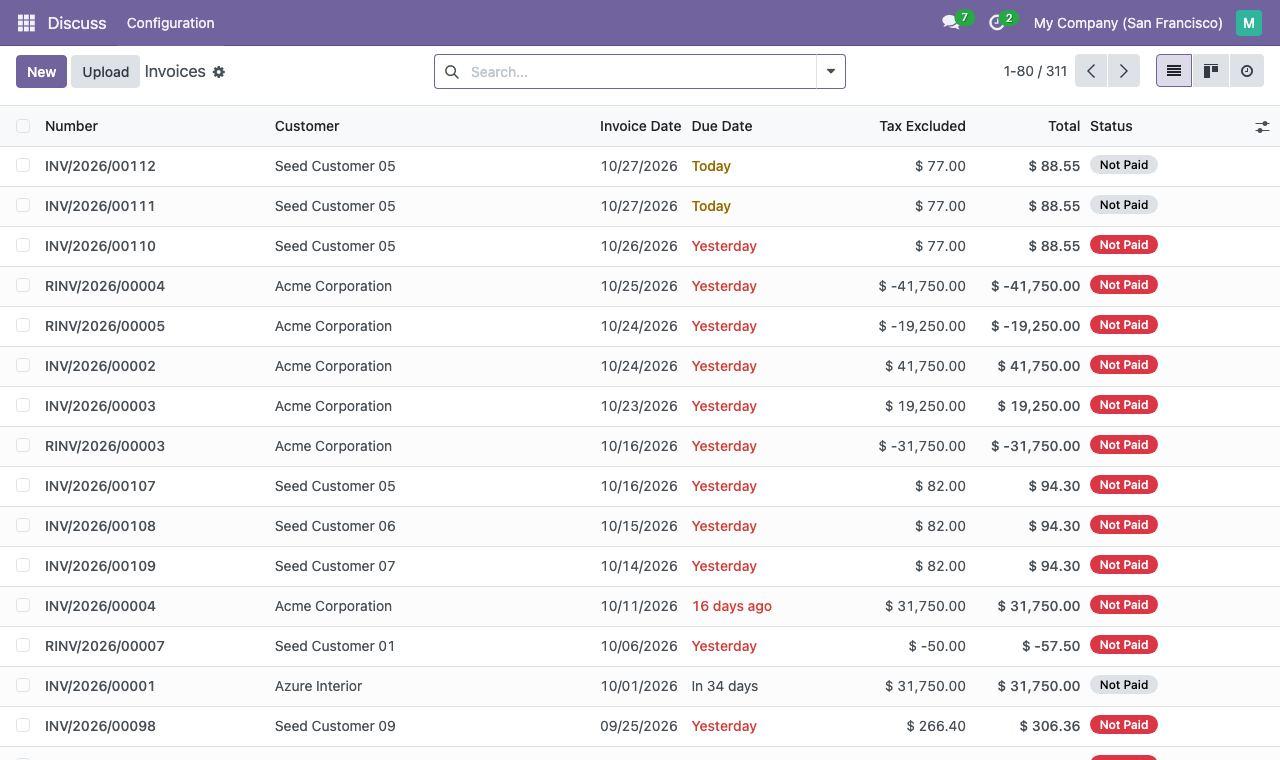
Odoo 18 test instance, seeded test customers. - 02
Click the dropdown icon in the search bar. Under Filters, use Invoice Date, or Add Custom Filter, to keep the last two years; Posted keeps confirmed invoices only.
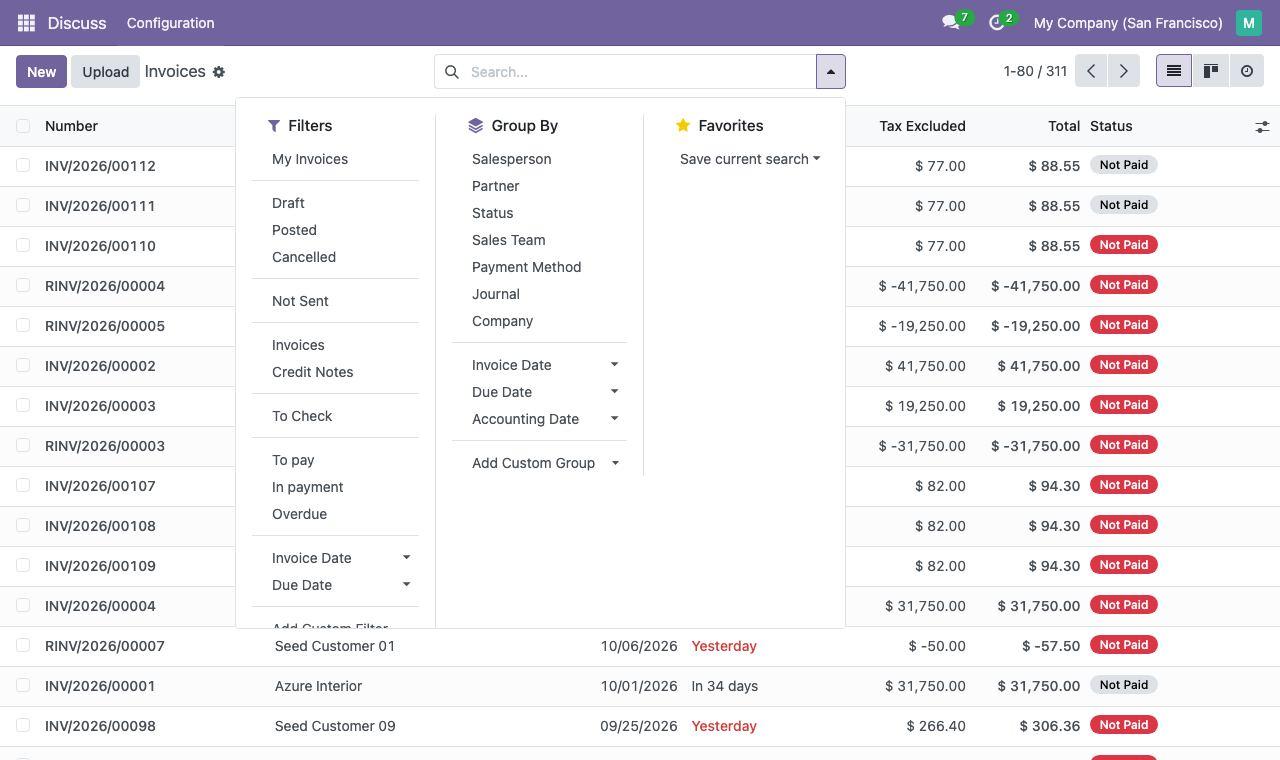
The search options, from the same test instance. - 03
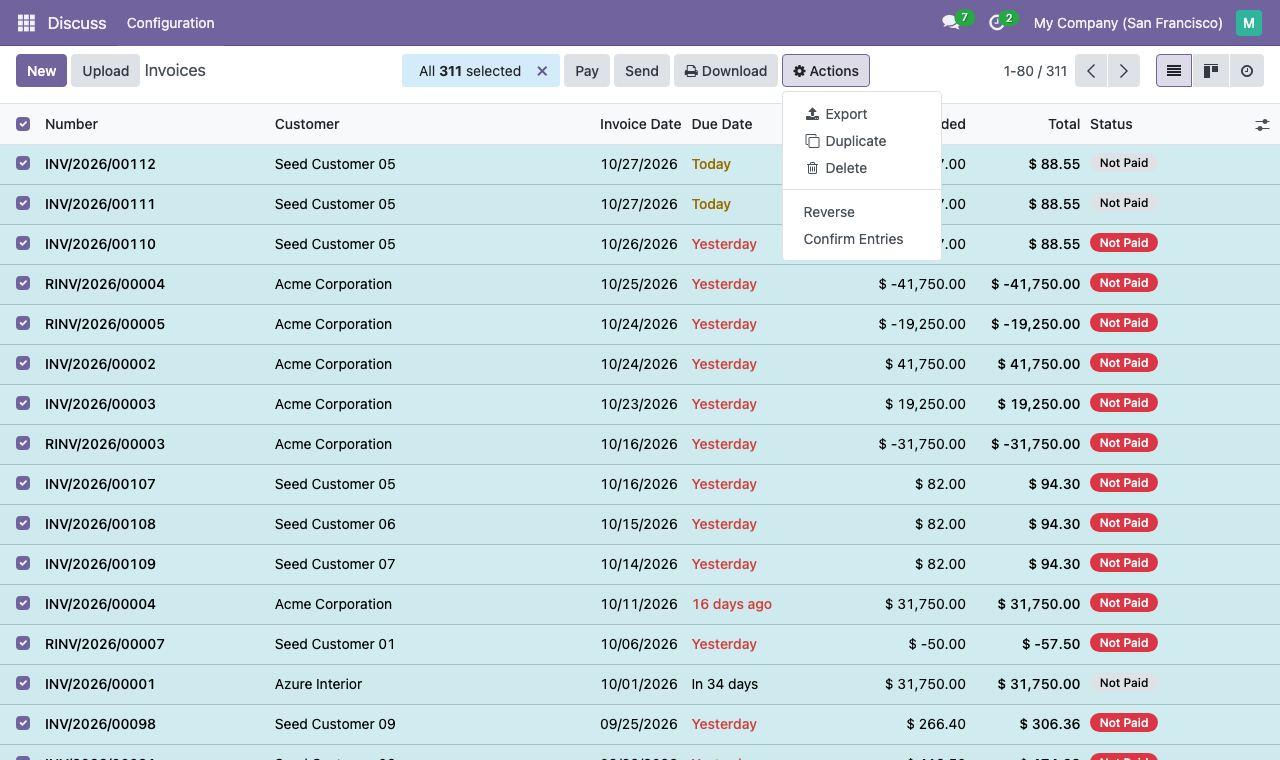
Tick the checkbox at the top of the list to select the invoices, and select all of them when Odoo offers to. Then click Actions and choose Export.
- 04
The Export Data window opens. Leave the default fields as they are, choose a file format, and click Export. Do not tick "I want to update data"; that option limits the export to fields that can be imported back into Odoo.
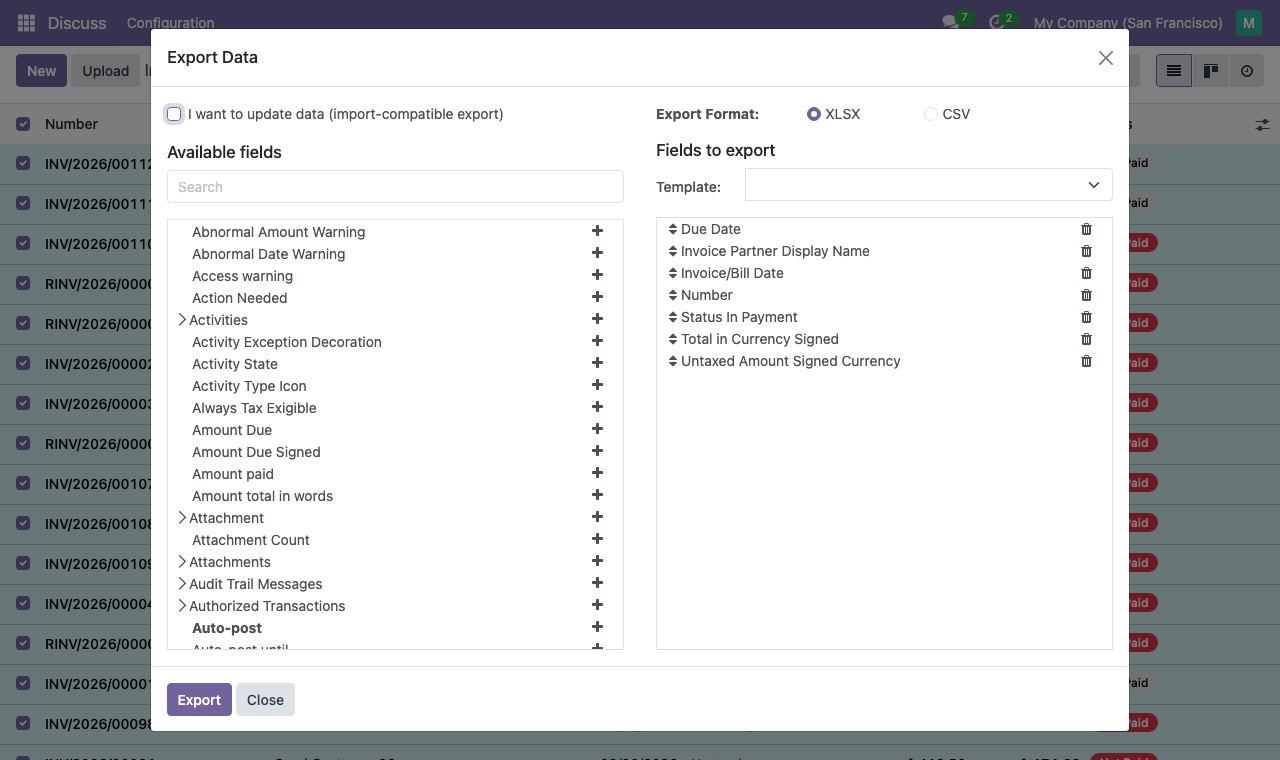
On the Odoo 18 test instance the formats are XLSX and CSV; Odoo's documentation lists .csv and .xls.
Load it
Load the file on Imports. Odoo's standard invoice export is recognised as it is: the columns are matched for you, problems are shown before anything is written, and nothing is written until you approve. Replay then runs on your history, and data health shows any gaps. To try the rules first without an account, run the free check on the file inside your browser.
Questions
Which fields should I export from Odoo?
The defaults. Allodial's Imports recognises Odoo's standard invoice export as it is, so there is nothing to add or rename.
Do I need the Odoo API to use Allodial?
No. Where the API is not available to you, the standard export loaded on Imports works the same way.
Where this shows up in Allodial
- Replay See what the rules find in your own history
- Data health and activity Know the data is right, and who changed what
Sources
Each line is what the page said on the date given, read from the company's own site.
- Odoo 18.0 documentation: customer invoices: https://www.odoo.com/documentation/18.0/applications/finance/accounting/customer_invoices.htmlread 2026-10-27
- Odoo 18.0 documentation: search, filter and group records: https://www.odoo.com/documentation/18.0/applications/essentials/search.htmlread 2026-10-27
- Odoo 18.0 documentation: export and import data: https://www.odoo.com/documentation/18.0/applications/essentials/export_import_data.htmlread 2026-10-27